
About SureTap™
SureTap™ is Datacap’s “bring-your-own-device” SoftPOS solution that turns NFC-enabled Android devices into secure payment acceptance tools, eliminating the need for dedicated hardware. Fully integrated into Datacap’s comprehensive payments ecosystem, it provides a streamlined, holistic experience for you and your merchants.
SureTap allows merchants to accept tap-to-pay transactions via Apple Pay®, Google Pay™ or contactless-enabled cards using the Android device’s built-in NFC reader.
SureTap operates in both semi-integrated and standalone mode.
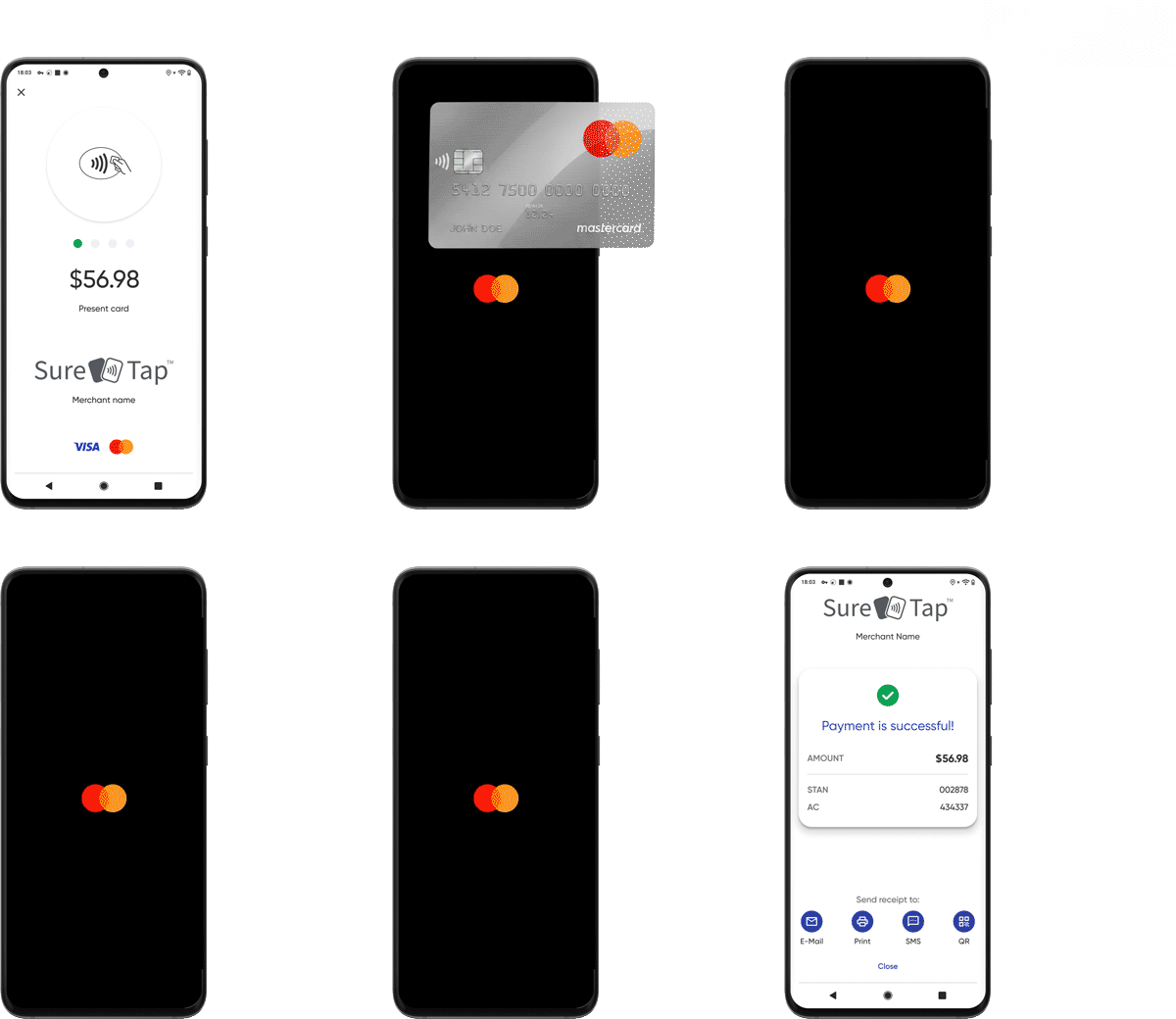
Standalone Mode
SureTap supports Standalone mode. Standalone is non-integrated and allows merchants to accept tap-to-pay transactions using any Android device’s built-in NFC reader.
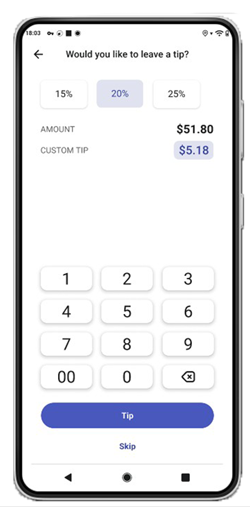
Standalone mode supports processing an EMVSale with suggestive tip prompting (optional).
Semi-Integrated Mode
SureTap also supports semi-integrated mode through Datacap’s dsiEMVAndroid control (integration required). Unlike communication to traditional EMV devices over Bluetooth or IP communication, SureTap uses Android’s Intent system to launch the SureTap app and receive the transaction results. This requires an active Activity context to launch the SureTap app, receive the transaction result and handle the result callback that the SureTap app returns.
Refer to dsiEMVAndroid SureTap SoftPOS for semi-integrated documentation and examples.
Basic Configuration
Here’s how to configure SureTap in Standalone mode:
1 Create and configure your SoftPOS deployment in PSCS.
2 Download the SureTap app from the Google Play Store on your Android device.
3 Sign-in to the app using your username and password. Credentials are sent via e-mail after the deployment is created and activated in PSCS.
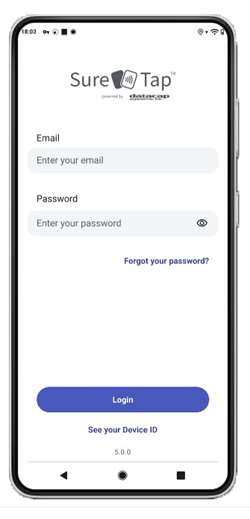
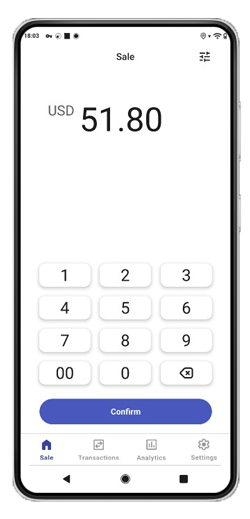
4 In the SureTap app, initiate a sale by entering the amount and following the prompts.
Additional Settings
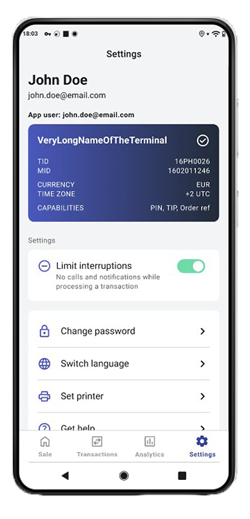
SureTap has the following additional setting options:
- Passwords
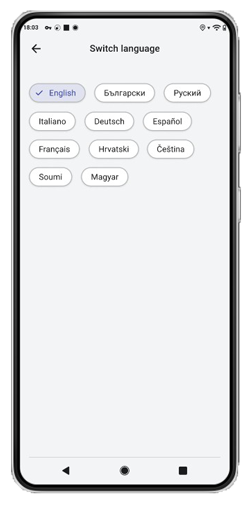
- Switch language
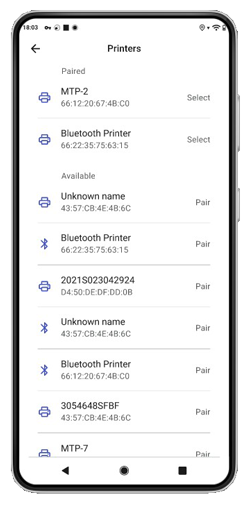
- Set Printer
- Switch Terminal
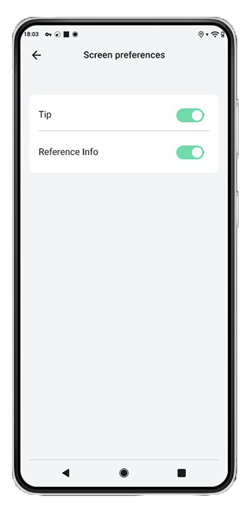
- Screen Preferences
Passwords
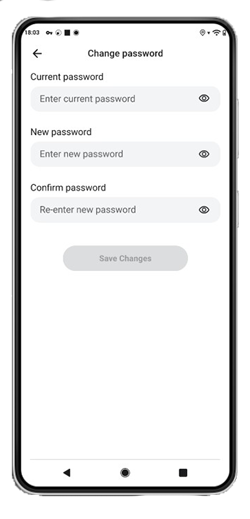
Use the password section to update user passwords.
Switch Language
Note: Language selection may vary.
Set Printer
Choose a printer for receipt printing.
Screen Preferences
Use the screen preferences section to optionally turn off/on Tips and Reference Info.
Receipt Options
Merchants have the option to provide customers with receipts in the following ways:
- SMS
- QR Code
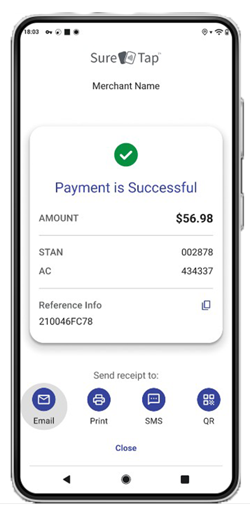
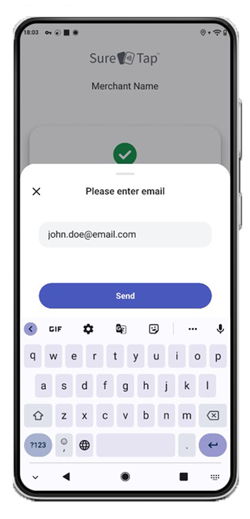
Once the payment is successful, choose from one of the receipt options and follow the instructions on the screen.
Frequently Asked Questions
Why can’t my phone/device read a contactless card?
Make sure your device has NFC. If it does have NFC, you need to make sure the NFC is
enabled:
- Go to Settings > More.
- Tap on the NFC switch to activate it. The Android Beam function will also
automatically turn on. - If Android Beam does not automatically turn on, just tap it and select Yes to turn
it on.
Smartphones’ NFC capabilities operate in tandem with Android Beam. If Android
Beam is disabled, it may limit NFC’s sharing capacity.
Sometimes the NFC cache might prevent the app from reading cards; in this case try
the following:
First, restart the device.
Turn off/on NFC:
- Open your phone’s Settings app.
- Tap Connected devices > Connection preferences > NFC.
- Turn OFF Use NFC for a minute and turn ON Use NFC.
Clear “cache” on NFC service:
- Open the Settings app.
- Tap Apps > See All # Apps
- Tap the 3 vertical ellipsis, “⋮” in upper right of screen.
- Tap Show System.
- Tap NFC Service.
- Tap Storage & cache.
- ONLY tap on Clear cache.
Restart the device and test again to take payment.
Where is my NFC located? How should I position the card?
Typically the NFC is located on the back of most Android devices. Usually the NFC chip is near and around the camera lenses on the back of the device.
How to confirm your Android device has NFC?
- On your Android device, open the Settings.
- Select Connected devices.
- Tap on Connection preferences.
- You should see NFC options.
- If the option is there, the device has the feature.
You can also check the characteristics of your device model.
Do I need an internet connection?
Yes, to process transactions with SureTap SoftPOS, you’ll need an internet connection via Wi-Fi or mobile data coverage (minimum 3G speed).
Do I need to give SureTap permissions for NFC, location and phone?
Yes, location and NFC permissions are necessary to accept transactions.
How do I turn off or disable tips?
Go to settings > screen preferences. Toggle Tip to the off position.
Common Errors
| Error | Resolution |
|---|---|
| System Monitoring Failed | Clear the app data and try again. This usually happens when there is poor or no internet connection. After clearing the data, users will be prompted to enter their Username and Password again. How to clear the app data:
|
| Abnormal Camera Usage | Disable Facial Recognition or increase the lock timeout. Also ensure there is no other application attempting to use the camera at the same time. |
| Security Check Failed | Verify the following:
|