
DC Direct Set-up Guide / PAX A30 Network Options / PAX A30 Wi-Fi Options / PAX A30 Wi-Fi (DHCP)
What do you need to connect the PAX A30 via Wi-Fi (DHCP)?
1 Swipe left from the right side of the Welcome screen.
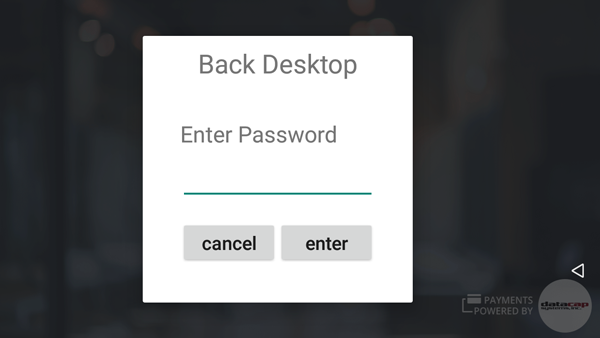
2 Touch the back key ◁ twice.

3 When prompted for Back Desktop password type "pax9876@@". Touch "Enter".
Note: “123456” may work on some devices as passwords may vary. For EVO Snap devices, use “EVO72963687” for the password.
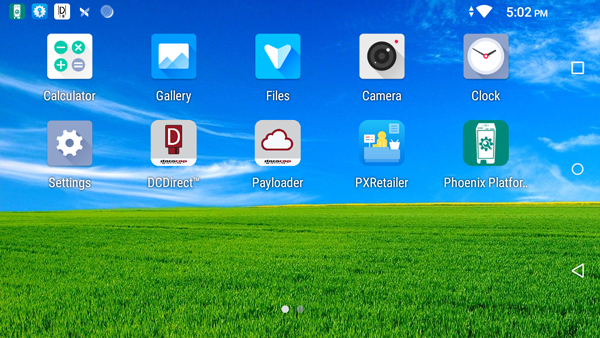
1 From the Android Desktop, touch "Settings".
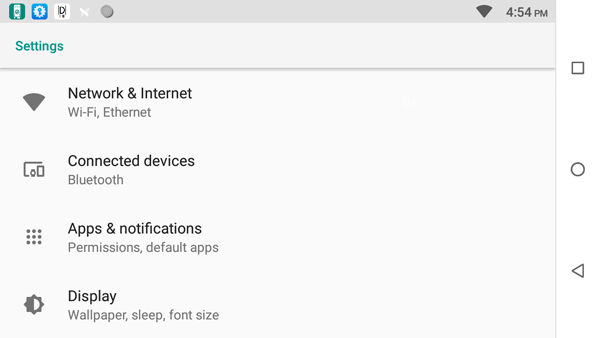
2 When prompted for password, type "pax9876@@". Touch "OK".
Note: “123456” may work on some devices as passwords may vary. For EVO Snap devices, use “EVO72963687” for the password.


3 Touch "Network & Internet" > "Wi-Fi".
4 Select the SSID of your access point. Type your network's password.
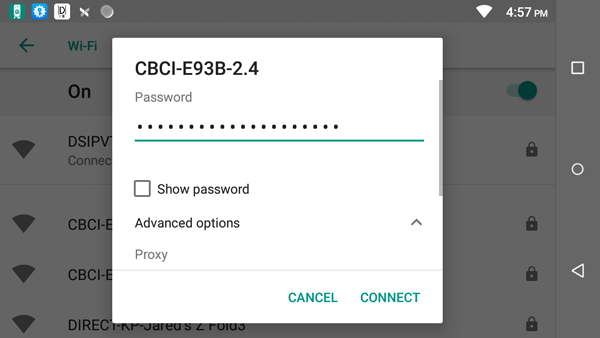
5 Touch "Connect".
6 Touch the home key ○ to return to Android Desktop.
Configure your Point of Sale using the DeviceID, the corresponding Merchant IDs (MIDS), and Terminal IDS (TIDS).
If using Wi-Fi or Ethernet connected PIN Pads, configure your POS with the corresponding IP addresses and port numbers from Step 4 above.
1 Tap the DC Direct app from the Android Desktop To view the DeviceID (serial #) and connected IP address.


2 Touch the home button ○ to return to Android Desktop.
3 Touch "PXRetailer" to return to Welcome Screen.
If you need help pairing DC Direct, contact your POS provider for specific instructions.
Initiate a $1.00 test sale from your POS.


We use cookies and similar technologies for analytics and advertising, including services from Google, LinkedIn, and others. These don't run until you choose. Accept, deny, or view preferences.